GoHighLevel Calendar Setup
Complete guide to connecting your GoHighLevel calendar with ConvertIQ for AI-powered appointment booking.
Before You Start
- • You need admin access to your GoHighLevel sub-account
- • A calendar must already be created in GHL
- • Team member availability must be configured in the calendar settings
Get Your Location ID
The Location ID identifies your GHL sub-account. To find it:
- 1Go to Settings in your GHL sub-account
- 2Click on Business Profile
- 3Your Location ID is displayed at the top of the page (or in the URL)
Example Location ID: KyHK92FcaRAwcSEzyc2R
Get Your Calendar ID
The Calendar ID identifies which calendar to use for booking. To find it:
- 1Go to Settings in your GHL sub-account
- 2Click on Calendars in the left sidebar
- 3Click on the calendar you want to use
- 4The Calendar ID is in the URL after
/calendars/
Example Calendar ID: SapRg7simIwiNulU0SvD
Important: Make sure the calendar has team member availability configured. If no availability is set, the AI won't be able to find open time slots.
Create Your Access Token
You need to create a Private Integration to get an Access Token. This allows ConvertIQ to access your GHL calendar.
- 1Go to Settings in your GHL sub-account
- 2Scroll down to Other Settings and click Private Integrations
- 3Click Create New Integration (or edit an existing one)
- 4Name it something like "ConvertIQ Calendar"
- 5Go to the Scopes tab and add the required permissions (see below)
- 6Click Update to save
- 7Copy the API Key shown - this is your Access Token
Example Access Token: pit-916685a7-22be-4e49-a86d-de3effd36d34
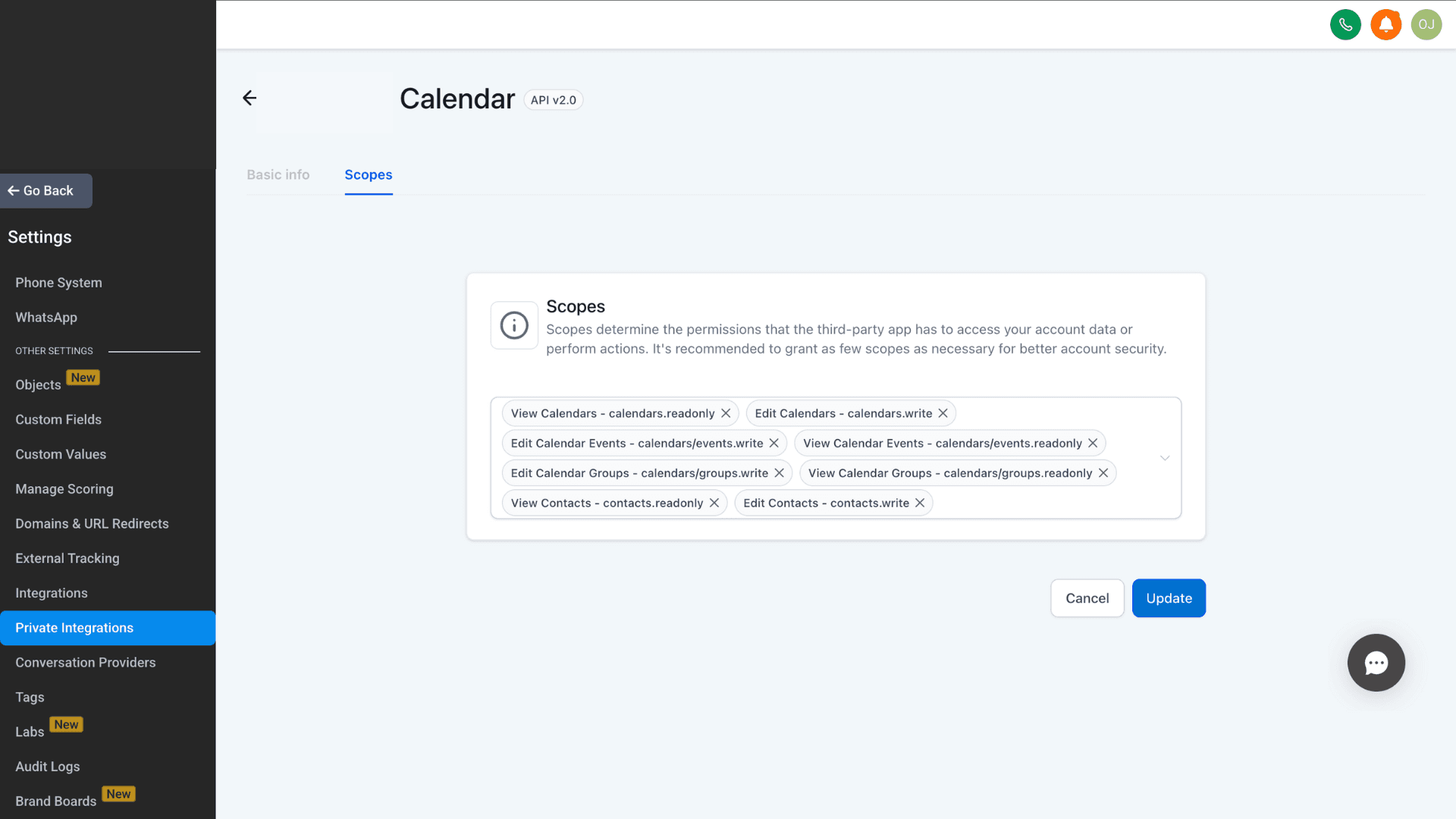
Private Integrations Screen
This is what the Private Integrations page looks like in GoHighLevel with the required scopes:
Required Permissions (Scopes)
Your Private Integration must have these scopes enabled for ConvertIQ to check availability and book appointments:
View Calendars
calendars.readonly
Edit Calendars
calendars.write
View Calendar Events
calendars/events.readonly
Edit Calendar Events
calendars/events.write
View Contacts
contacts.readonly
Edit Contacts
contacts.write
Optional Permissions
If the AI reports it doesn't have access when booking, try adding these additional scopes:
View Calendar Groups
calendars/groups.readonly
Required for round-robin calendars
Edit Calendar Groups
calendars/groups.write
Required for team calendar management
Connect in ConvertIQ
Now add your GHL credentials to ConvertIQ:
- 1Go to Settings → Integrations → GoHighLevel
- 2Enter your Location ID
- 3Enter your Calendar ID
- 4Enter your Access Token (include "Bearer " prefix if not auto-added)
- 5Click Save and test the connection
Troubleshooting
"No available slots found"
- • Check that team member availability is configured in GHL calendar settings
- • Verify the calendar isn't fully booked for the requested date
- • Make sure the timezone is correctly set in GHL
"Access denied" or "Unauthorized"
- • Verify your Access Token is correct and hasn't expired
- • Check all required scopes are enabled in Private Integrations
- • Try adding the optional Calendar Groups scopes
"Booking at wrong time"
- • Make sure the prospect's timezone is captured during the call
- • Check that your GHL sub-account timezone matches your business timezone
Ready to connect?
Once you have your Location ID, Calendar ID, and Access Token, you're ready to connect GHL to ConvertIQ.